How To Optimize Google Merchant Center for Free Product Listings!
How To Optimize Google Merchant Center for Free Product Listings!
For online retailers, Google Merchant Center offers a massive opportunity that many brands overlook, or under-utilize.
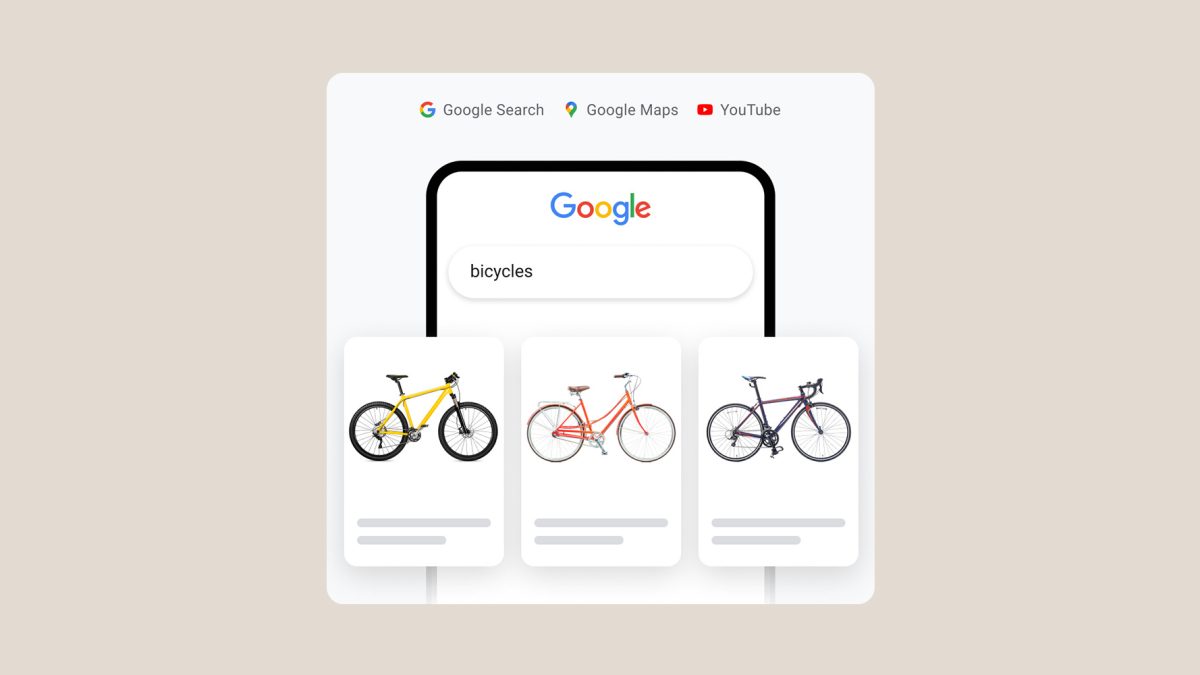
If you’ve searched for products online recently, you’ve probably noticed how search results now resemble an e-commerce store, complete with popular products, filters for style, price, color, and more—depending on what you’re looking for.
With Google Merchant Center, businesses can showcase their products for free in Google Results and the Shopping tab.
Yes, many of the top placements are paid ads (which you can also manage through Merchant Center), but there’s still plenty of visibility to gain from free listings.

Google Merchant Center Optimization
If you have not already, the first step is to create an account!
Create an account: Go to Google Merchant Center and sign up.
- Verify and claim your website:
- Add your website URL.
- Verify ownership using methods like HTML file upload, Google Tag Manager, or Google Analytics.
Here are a few tips to maximize your Merchant Center visibility and performance for organic (free) listings:
Your Product Feed
Your product feed is the backbone of your Google Merchant Center strategy. It’s essentially a database of your products that tells Google what you’re selling. A well-structured, accurate feed ensures your products appear in the right searches and reach the right audience.
A feed can be as simple as a google doc, or more complex like a XML or TXT file that updates dynamically. If you are using something like WordPress WooCommerce or Shopify. There are pre built tools and plugins that make this pretty easy.
Structure Your Data Correctly
- Use Google’s Product Data Specification as a guide to ensure your feed meets the necessary requirements.
- Choose a format like XML, TXT, or Google Sheets to structure your feed, depending on your technical capabilities and business size.
- Keep the feed organized and easy to update, especially if you have a large inventory.
Include Essential Product Attributes
Google requires certain attributes to display your products effectively. Make sure to include:
- Product title: Clear and keyword-rich, describing the product accurately.
- Description: Detailed and relevant, highlighting key features and benefits.
- Price: Accurate and competitive, reflecting what customers see on your website.
- Availability: Use “in stock,” “out of stock,” or “preorder” to inform customers of the product’s status.
- Link: Direct to the product’s landing page.
- Image link: High-quality, professional images showcasing the product.
- Brand: Specify the product brand, if applicable.
- GTIN, MPN, or SKU: Add unique product identifiers for better classification.
- Condition: Specify if the product is new, used, or refurbished.
Follow Google’s Feed Rules!
- Ensure your data matches the product details on your website exactly to avoid disapproval.
- Avoid restricted content (e.g., adult products or counterfeit goods).
- Use supported currencies and languages based on your target region.
Keep Your Feed Up to Date
- Regularly update your feed to reflect changes in price, stock levels, or product availability.
- Automate updates if possible, using your website’s inventory management system or Google Merchant Center’s API.
Optimize Product Titles and Descriptions
- Use relevant keywords: Include terms shoppers are likely to search for.
- Be descriptive: Highlight key details like size, color, material, and style.
- Stay concise: Avoid fluff and focus on clarity.
- Avoid promotional language: Stick to straightforward, factual information.
Provide High-Quality Images
- Use clear, high-resolution images that showcase the product accurately.
- Follow Google’s guidelines: no watermarks, plain backgrounds, and minimum size requirements (100x100px for most products, 250x250px for apparel).
- Use multiple angles or lifestyle images if possible to better engage shoppers.
Add Structured Data Markup To Your Website
Structured data markup is a tool that helps Google understand your product pages and enhances their appearance in search results. By implementing schema.org markup, you can provide Google with detailed, structured information about your products, increasing the chances of showing up in rich results like product carousels, pricing displays, and availability badges.
Implement schema.org Markup
If you are not familiar with Product structured data, Google has a great resource to get your started – Introduction to Product structured data
- Key attributes to include:
- Name: The product’s title.
- Image: A link to the main product image.
- Description: A detailed product description.
- Price: The product’s current price.
- Availability: Whether the product is in stock, out of stock, or on backorder.
- Brand: The product’s manufacturer or brand.
- AggregateRating (optional): Average star rating based on customer reviews, if applicable.
- SKU or GTIN: Unique product identifiers to improve categorization.
Test and Validate Your Structured Data
- Use Google’s Rich Results Test to ensure your structured data is implemented correctly.
- Check for any errors or warnings that could prevent your data from being used in search results.
- Fix discrepancies to ensure Google can parse and display your product data accurately.

Regularly Check the Diagnostics Tab
- In Google Merchant Center, navigate to the Diagnostics tab to view a comprehensive overview of your feed’s health.
- Pay attention to:
- Errors: Critical issues that block products from appearing (e.g., missing required attributes like price or title).
- Warnings: Less critical but still important issues that may impact performance (e.g., low image quality).
- Disapprovals: Products flagged for policy violations or mismatched data.
Under PRODUCTS >> NEEDS ATTENTION

Address Errors Promptly
- Review error details: Click on the specific issue to understand what’s wrong and which products are affected.
- Fix feed data: Update the required attributes in your feed file or use feed management tools to make corrections.
- Sync updates: Resubmit your product feed after fixing errors to ensure Google reprocesses the data.
Common Issues
- Missing Attributes: Ensure all required fields (e.g., title, description, price, and availability) are filled out and formatted correctly.
- Mismatched Data: Make sure the information in your product feed matches what appears on your website, especially prices and stock levels.
- Image Quality Problems: Replace blurry or low-resolution images and ensure they meet Google’s standards.
Explore Additional Free Listings Opportunities
Google Merchant Center gives you access to more than just free product listings in the Shopping tab. By leveraging additional features, you can expand your reach across more Google properties and even target local customers
Optimize for Local Inventory Ads
Even if you’re not running paid ads, enabling Local Inventory Ads allows you to showcase in-store products to nearby customers searching on Google. This can also enhance your presence in the Shopping tab and Google Maps.
Highlight Promotions and Special Offers
- Use Google Merchant Center’s Promotions Tool to display special offers, discounts, or promotions alongside your free listings.
- Promotions such as “10% Off” or “Buy One, Get One Free” can help your products stand out in search results.
Participate in Dynamic Remarketing
Even without running full ads, you can integrate your Merchant Center feed with Google Ads to enable dynamic remarketing for visitors who previously interacted with your free listings.
Improving Your Store Quality for Google Merchant Center

- *Photo Credit – Google*
Review the “Store Quality” tab to see how you compare with other businesses in your industry.
Google evaluates the overall quality of your store to ensure it provides a positive shopping experience for users. High store quality not only improves your eligibility for free listings but also enhances your visibility and trustworthiness. Follow these steps to improve your store quality and meet Google’s requirements
Google provides clear benchmarks and recommendations for improving your rating.
More about Google Top Quality Store program
Taking full advantage of free product listings is a game-changer
Optimizing your Google Merchant Center and taking full advantage of free product listings is a game-changer for your SEO and marketing strategy. It’s an easy way to get your products in front of potential customers without spending a dime on ads. By fine-tuning your product data, improving store quality, and ensuring your listings are accurate and engaging, you can grab more attention where it counts—in Google search results and the Shopping tab.
Free listings aren’t just a bonus; they’re a smart way to drive more traffic to your site and work hand-in-hand with your paid efforts. As Google continues to blur the lines between search and shopping, making your products stand out is more important than ever.